3D cartoon girl pointing at a blue UI button labeled “Button States,” illustrating button state design for web and app interfaces.

Button States Explained: Default, Hover, Active, Disabled, Loading

Jan 12, 2026

·

2 min read

Button states in UI design are how a button communicates what is happening before, during, and after interaction. When states are clear, users don’t have to guess whether something is clickable, pressed, or still processing.

Button

Button is a prominent and visually distinct element encouraging users to take a specific action. It is commonly used to represent the most important or desired action on a screen or within a particular interface.

Buttons are used for:

  • Call-to-action (CTA)

  • Confirmation and acceptance

  • Submitting forms & next steps

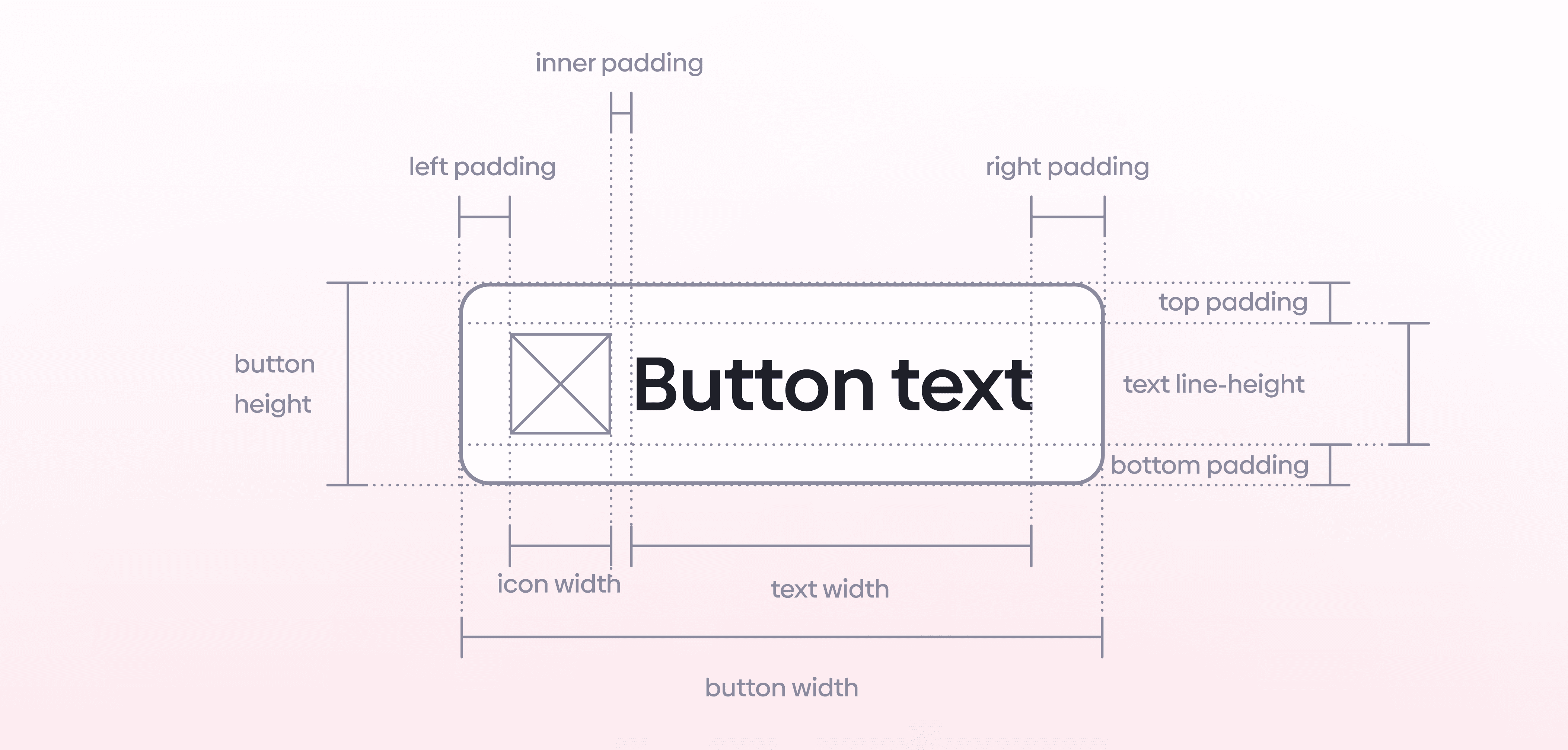
UI button spacing diagram showing inner, left, right, top, and bottom padding, icon and text widths, line height, and overall button dimensions.

Let's go through the must-know button states in UI design.

Default

The default state is the button at rest. It should look like a button without explanation: clear, familiar, and visually distinct so users immediately recognize it as interactive.

Hover

Hover is the desktop feedback moment. When the pointer moves over the button, the UI should respond with a visible change so users know they can click it. The hover state should stay consistent with the default style, just clearer.

Active

Active (pressed) is what users see while clicking or tapping. It confirms the interaction is happening and the UI is responding. Even though it’s brief, it’s important feedback.

Disabled

Disabled is a common state, but the guidance here is to avoid it when possible. Instead of blocking interaction, keep the button pressable and use validation and error messages to explain what needs to change.

Loading

When an action doesn’t instantly complete, the UI should show that something is happening. Add a loader or another visual indicator so users know the system is processing in the background.
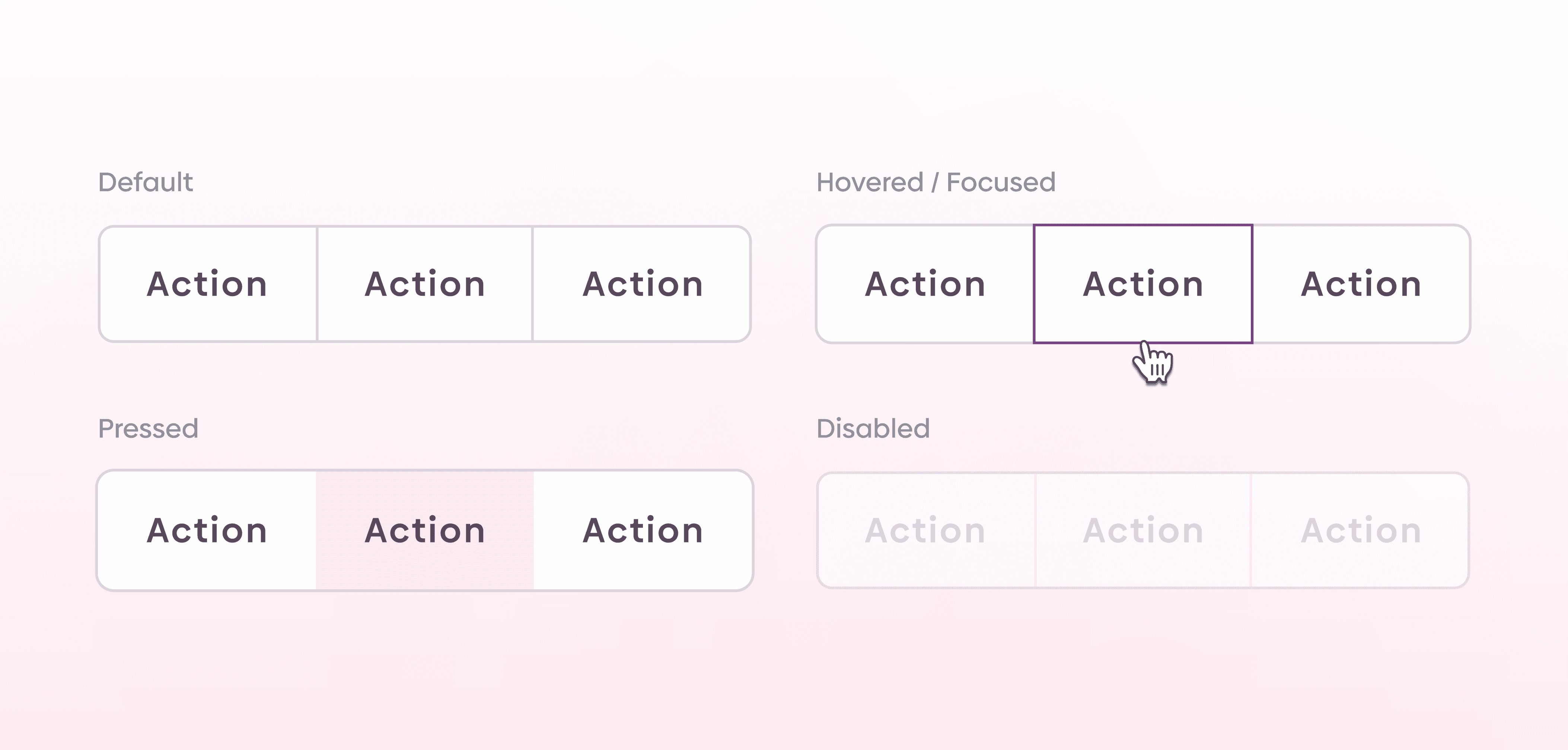
UI design button states example showing default, hovered/focused outline, pressed selection, and disabled tabs labeled “Action.”

Quick recap

  • Default: button at rest

  • Hover: feedback on pointer hover

  • Active: feedback while pressing

  • Disabled: avoid when possible; prefer validation/error messaging

  • Loading: show a loader or visual indicator when the action takes time

Button

Button is a prominent and visually distinct element encouraging users to take a specific action. It is commonly used to represent the most important or desired action on a screen or within a particular interface.

Buttons are used for:

  • Call-to-action (CTA)

  • Confirmation and acceptance

  • Submitting forms & next steps

UI button spacing diagram showing inner, left, right, top, and bottom padding, icon and text widths, line height, and overall button dimensions.

Let's go through the must-know button states in UI design.

Default

The default state is the button at rest. It should look like a button without explanation: clear, familiar, and visually distinct so users immediately recognize it as interactive.

Hover

Hover is the desktop feedback moment. When the pointer moves over the button, the UI should respond with a visible change so users know they can click it. The hover state should stay consistent with the default style, just clearer.

Active

Active (pressed) is what users see while clicking or tapping. It confirms the interaction is happening and the UI is responding. Even though it’s brief, it’s important feedback.

Disabled

Disabled is a common state, but the guidance here is to avoid it when possible. Instead of blocking interaction, keep the button pressable and use validation and error messages to explain what needs to change.

Loading

When an action doesn’t instantly complete, the UI should show that something is happening. Add a loader or another visual indicator so users know the system is processing in the background.

UI design button states example showing default, hovered/focused outline, pressed selection, and disabled tabs labeled “Action.”

Quick recap

  • Default: button at rest

  • Hover: feedback on pointer hover

  • Active: feedback while pressing

  • Disabled: avoid when possible; prefer validation/error messaging

  • Loading: show a loader or visual indicator when the action takes time

If you aren't following us on Instagram already, you're seriously missing out! Become a part of our ever-growing community and learn something new from the field of product design every. single. day.

Happy designing! 🥳

andrija & supercharge design team

If you aren't following us on Instagram already, you're seriously missing out! Become a part of our ever-growing community and learn something new from the field of product design every. single. day.

Happy designing! 🥳

andrija & supercharge design team

10,000+ designers

Stay up to date

Get valuable design tips, exclusive offers, and more—straight to your inbox. We don’t spam and you can unsubscribe at any time.

10,000+ designers

Stay up to date

Get valuable design tips, exclusive offers, and more—straight to your inbox. We don’t spam and you can unsubscribe at any time.

10,000+ designers

Stay up to date

Get valuable design tips, exclusive offers, and more—straight to your inbox. We don’t spam and you can unsubscribe at any time.

10,000+ designers

Stay up to date

Get valuable design tips, exclusive offers, and more—straight to your inbox. We don’t spam and you can unsubscribe at any time.